PPT to SCORM: Convert Your PowerPoint into a Modern Carousel Course (Step‑by‑Step)
Convert PPT to SCORM in minutes by exporting slides to PNG, bulk‑uploading them into a carousel, and publishing a SCORM package your LMS can track.
Converting a PowerPoint presentation into a SCORM course doesn’t have to mean rebuilding everything slide by slide. If your goal is speed, visual fidelity, and LMS tracking, the fastest workflow is: export PPT slides as images, import them into a carousel, and publish a SCORM package.
Below you’ll learn exactly how to go from PPT to SCORM in minutes using ScormStack’s Image Carousel block, bulk image upload, and one‑image‑at‑a‑time navigation.
Why convert PPT to SCORM?
PowerPoint is great for live sessions, but static when delivered online. SCORM packages, on the other hand, run inside your LMS, track completion, and provide a cleaner, mobile‑friendly experience for learners.
- Track progress and completion in your LMS
- Deliver a consistent, responsive experience on any device
- Add simple interactions around your visuals
For a broader introduction to the “why,” see this primer on converting PowerPoint to SCORM (background reading) — it outlines common reasons to shift from static slides to packaged e‑learning content: How to convert PowerPoint to SCORM (Easygenerator).
The fastest method: PPT → PNG → Carousel → SCORM
This method preserves your slides visually while giving learners a clean, swipeable experience and giving you all the benefits of SCORM tracking.
Step 1 — Export PowerPoint slides as PNG
- Open your PPT/PPTX
- File → Export → Change File Type → PNG (or Save As → PNG)
- Choose “All Slides” and export to a dedicated folder (keeps ordering predictable)
Tips:
- Prefer “High” or “HD” resolution for crisp images
- Keep filenames ordered (PowerPoint usually prefixes slide numbers)
Step 2 — Create a new course and add an Image / Carousel Block
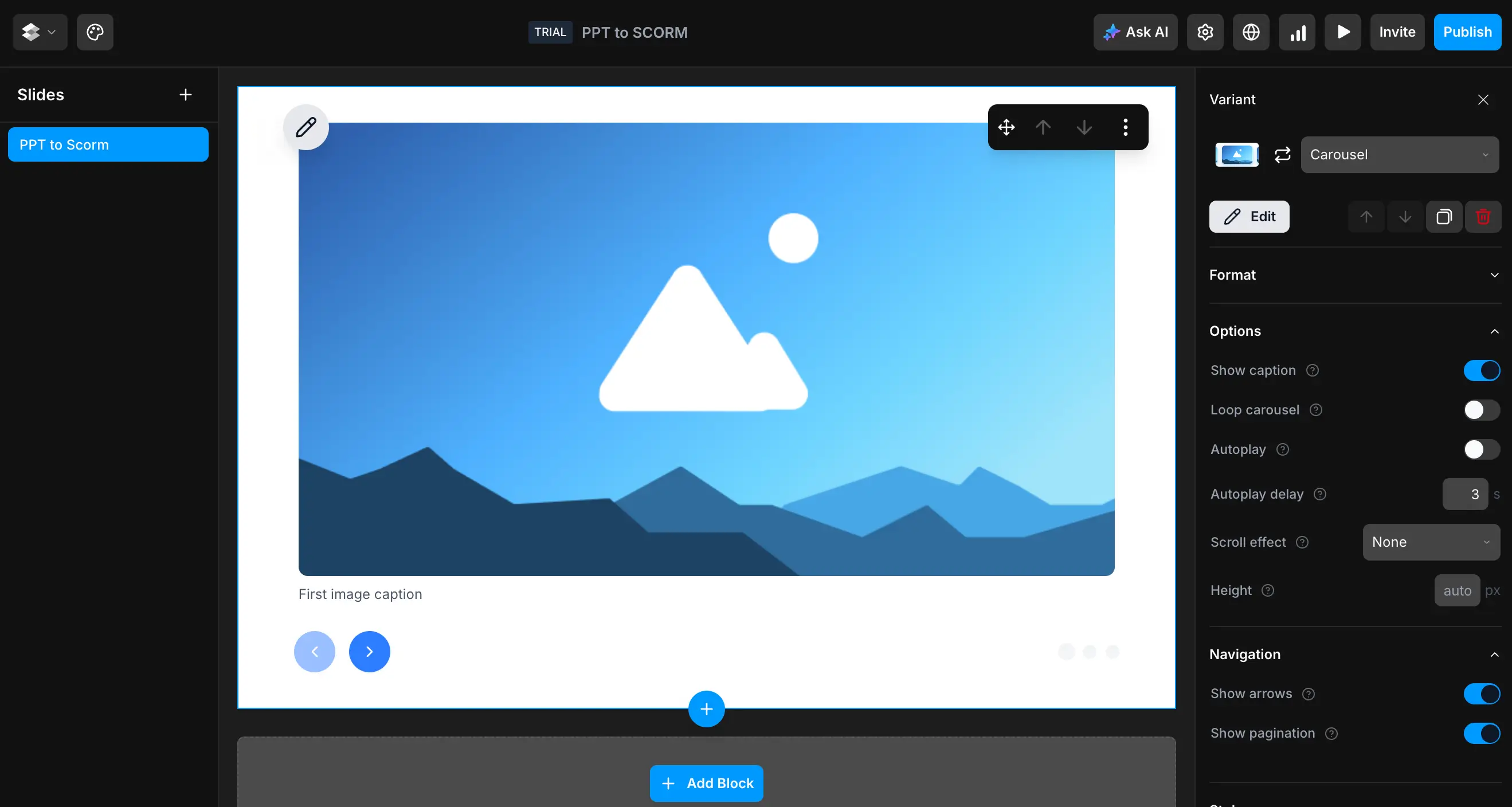
- In ScormStack, create a new course (or open an existing one)
- Add an Image / Carousel block
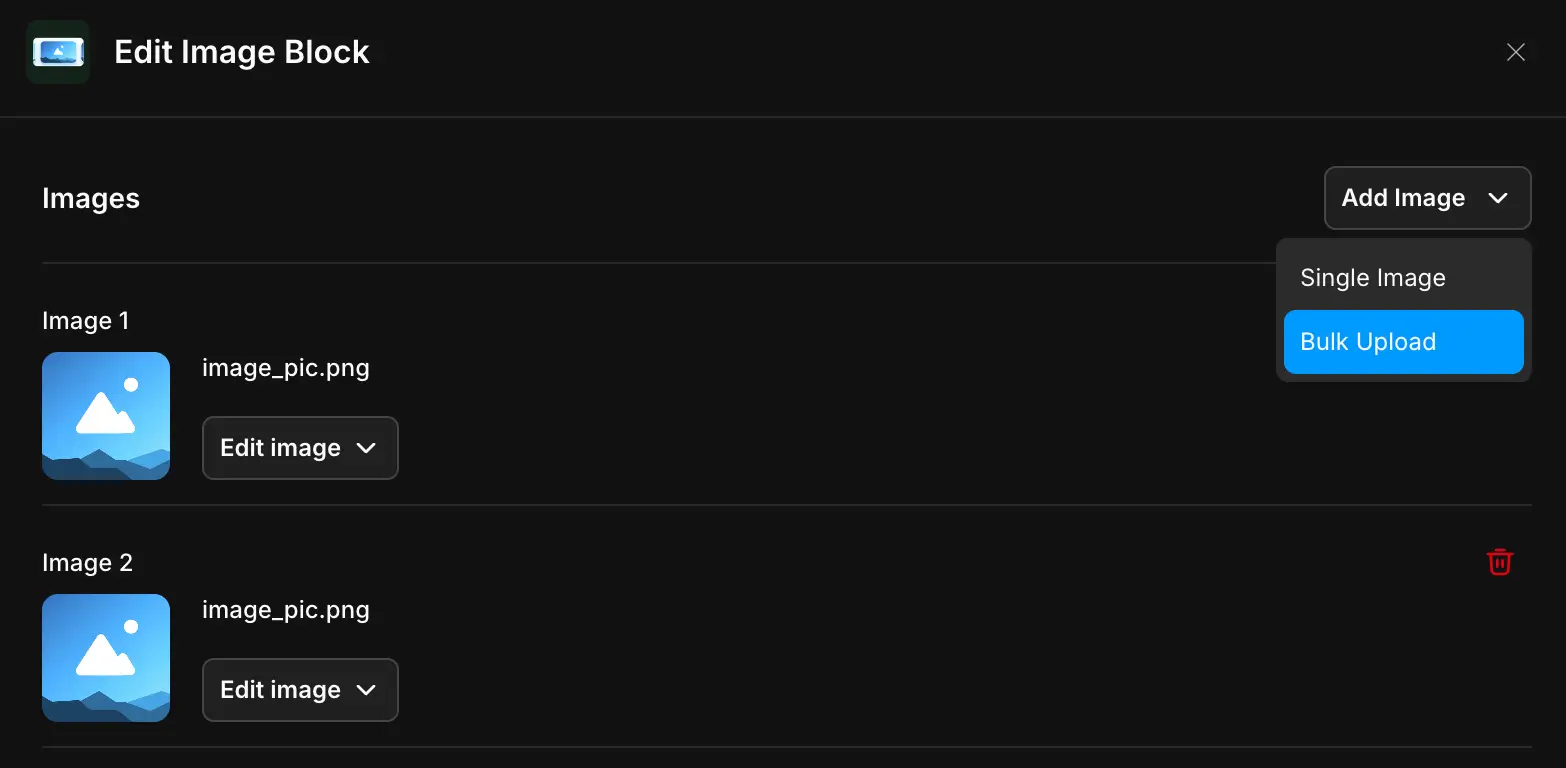
Step 3 — Bulk upload all slide PNGs in order
- Click “Add Image” → choose “Bulk Upload”
- Select all exported PNGs (Cmd/Ctrl+A inside the folder)
- Confirm upload — ScormStack creates image items in the same order as your slides
Why this matters: maintaining order is key when you want the learner to click/scroll through slides one at a time, just like the original presentation.
Step 4 — Configure carousel behavior (optional)
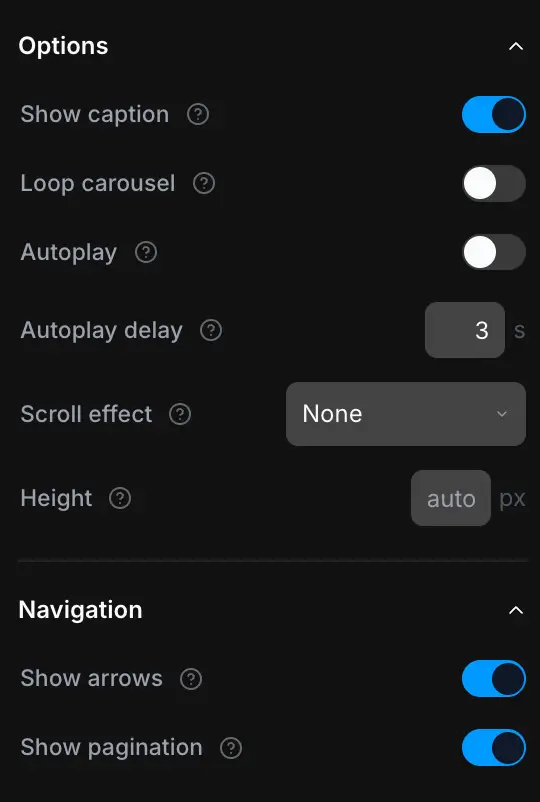
In Block Settings → Carousel, adjust:
- Autoplay (on/off)
- Autoplay delay (seconds)
- Show navigation (Prev/Next buttons)
- Show pagination (themed dots)
Notes:
- Images without a valid
srcare safely skipped (cleaner, no broken frames) - Height applies to the whole carousel; images adapt to fill
- Smooth effects (scale/opacity) keep transitions polished and lightweight
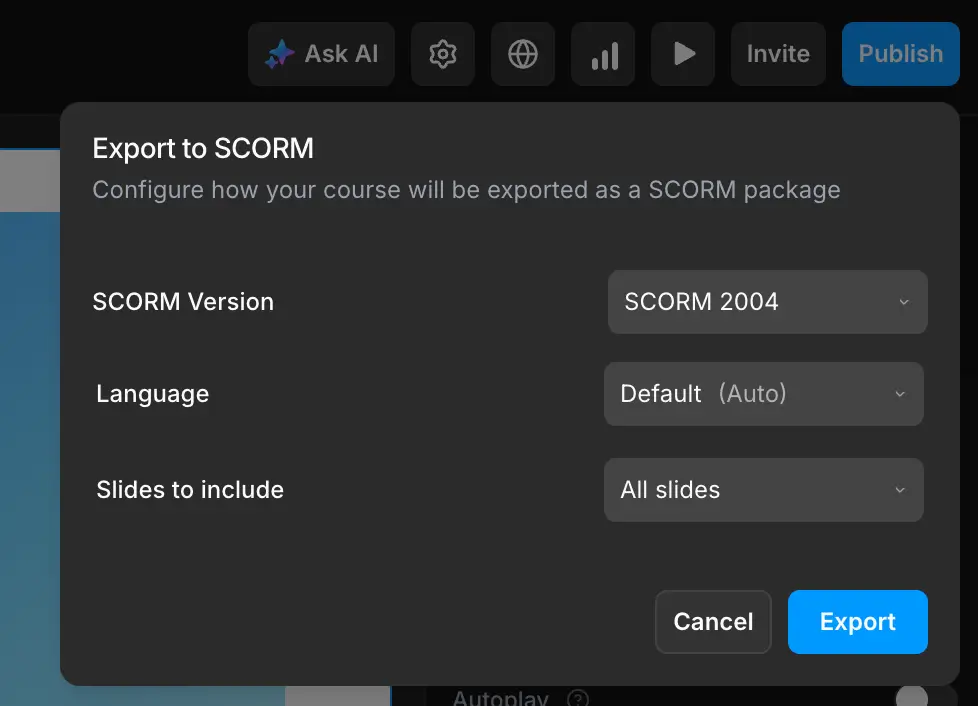
Step 5 — Export as SCORM and upload to your LMS
- Export your course as SCORM 1.2 or SCORM 2004 (as required by your LMS)
- Upload the generated .zip to the LMS and assign it to learners
- Test completion/exit to confirm tracking and bookmarking
Frequently Asked Questions
How do I convert PPT to SCORM fast?
Use a PPT → PNG → Carousel approach. Export slides as PNG, bulk upload them into ScormStack’s Image Carousel block in the correct order, configure autoplay/navigation, then export a SCORM .zip.
Is there a PPT SCORM converter?
If by “converter” you mean a one‑click transformation, tools vary widely. A reliable, design‑preserving method is using slide images in a SCORM‑ready builder like ScormStack. It keeps your visual design intact and adds LMS tracking.
Can I add interactivity after I convert PPT to SCORM?
Yes. You can mix in assessments, callouts, tabs, or audio narration blocks before/after the carousel to add checkpoints and guidance.
Will the course be responsive on mobile?
Yes. The carousel shows one image at a time with navigation controls and pagination dots, and the height setting ensures slides fit consistently across viewports.
Best practices for PPT → SCORM carousels
- Keep each slide focused; avoid dense text blocks
- Prefer large, high‑contrast fonts to maintain readability on mobile
- Use consistent aspect ratio across slides to avoid jumps in layout
- Add short checkpoint questions after several slides to boost retention
- For narrated decks, consider a dedicated audio block per slide group
When to choose a carousel vs. a full rebuild
Choose the carousel route when:
- Speed to publish is a priority
- Slides are mostly visual (diagrams, screenshots, cues)
- You want a faithful read‑only version of your deck with light UX polish
Choose a rebuild when:
- You need deep interactivity on every slide (drag‑and‑drop, hotspots)
- You want to rewrite content for micro‑learning or scenario‑based paths
Summary: A practical “convert PPT to SCORM” workflow
If you need a practical PPT to SCORM workflow that’s fast and looks great:
- Export PPT slides to PNG (in order)
- Bulk upload images into the ScormStack Image Carousel
- Configure autoplay, navigation, and pagination
- Export SCORM and upload to your LMS
This approach acts as a lightweight PPT SCORM converter while keeping the design you already have — and it’s perfect for turning static decks into LMS‑trackable courses with minimal effort.